This guide walks you through creating your first report in Summation — from importing data to generating an AI-powered analysis to refining it with follow-up questions.
Open your project
Open your project from Recent projects on the home page, or click Projects in the sidebar and select it from the list. For this guide, click on to get started.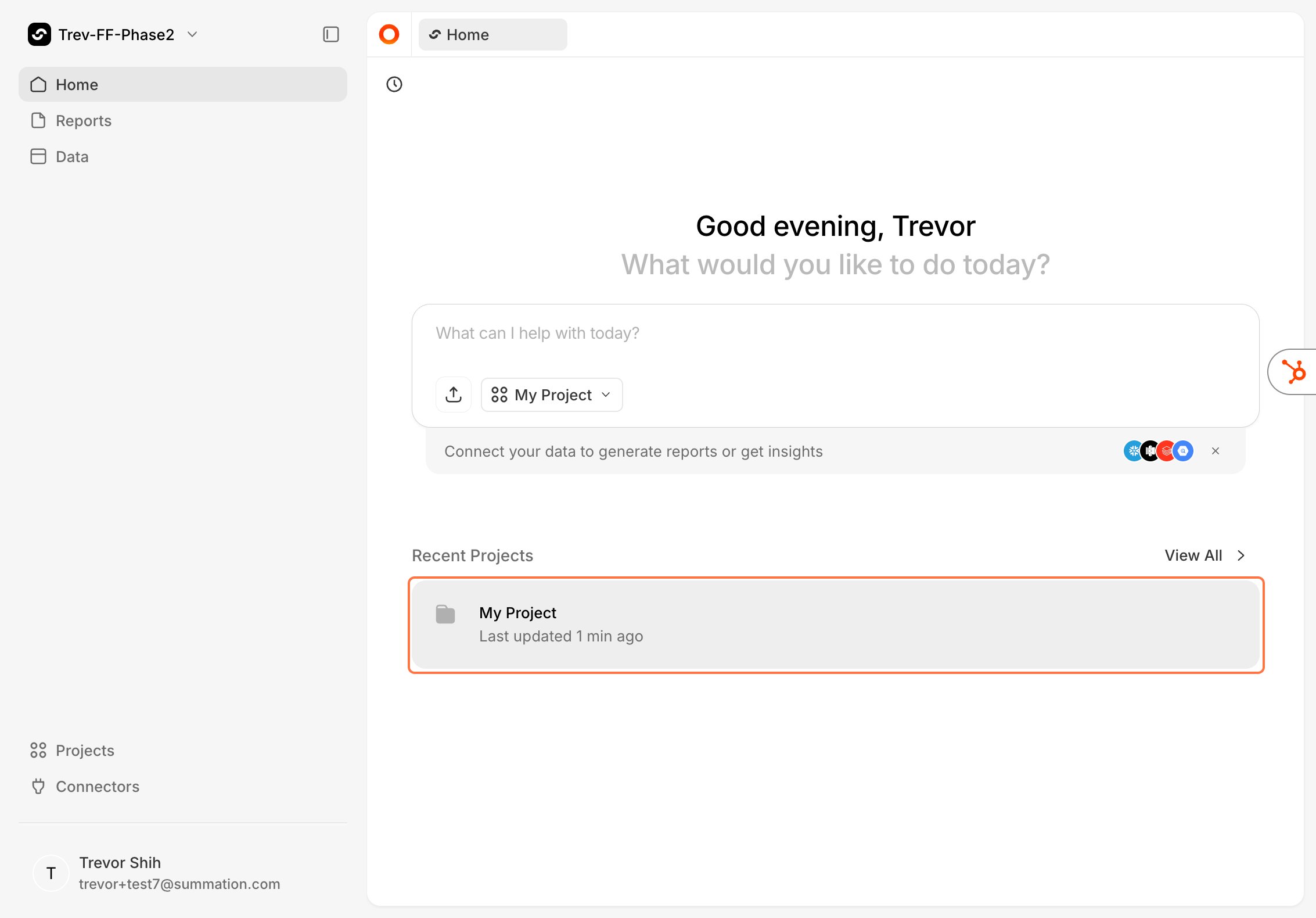
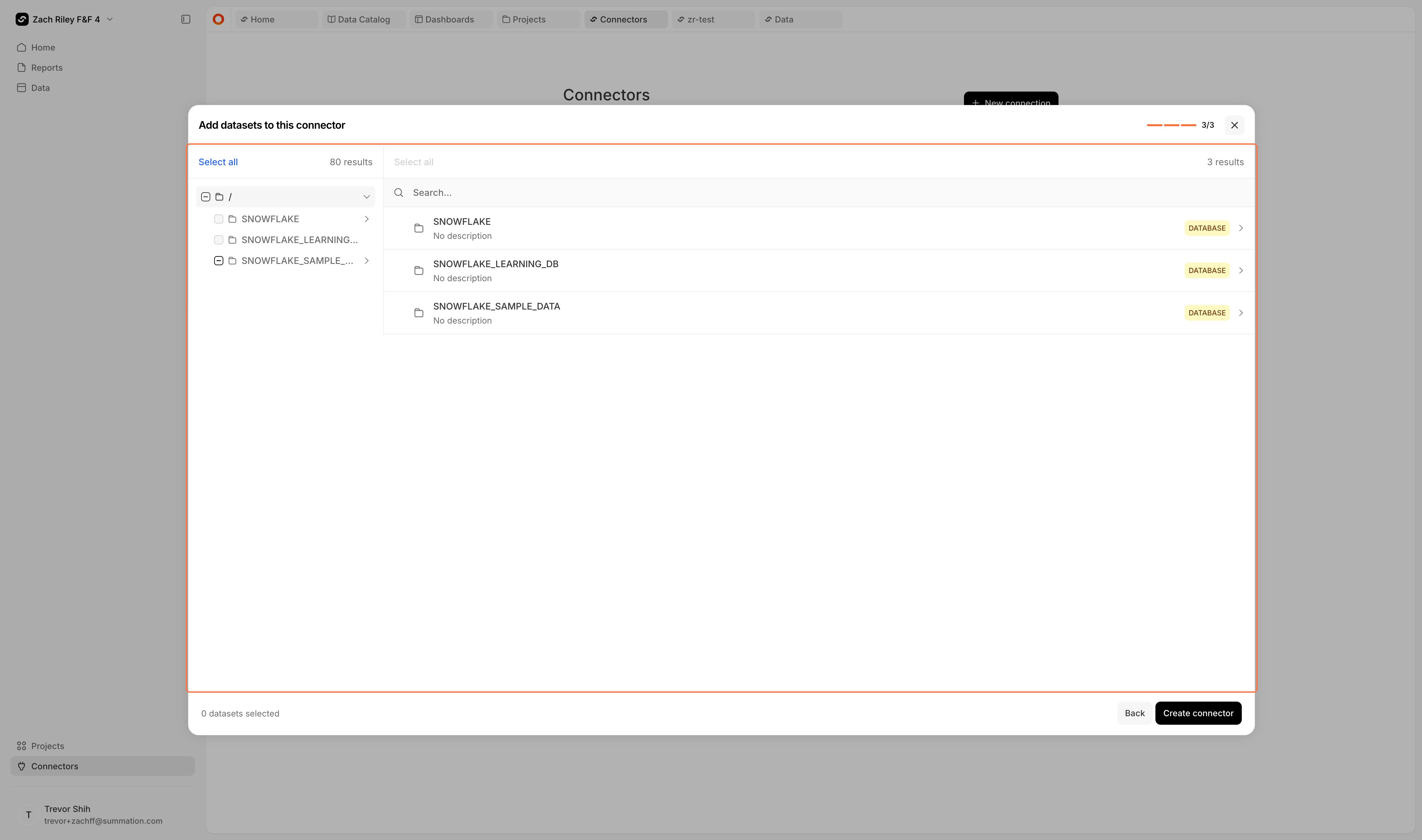
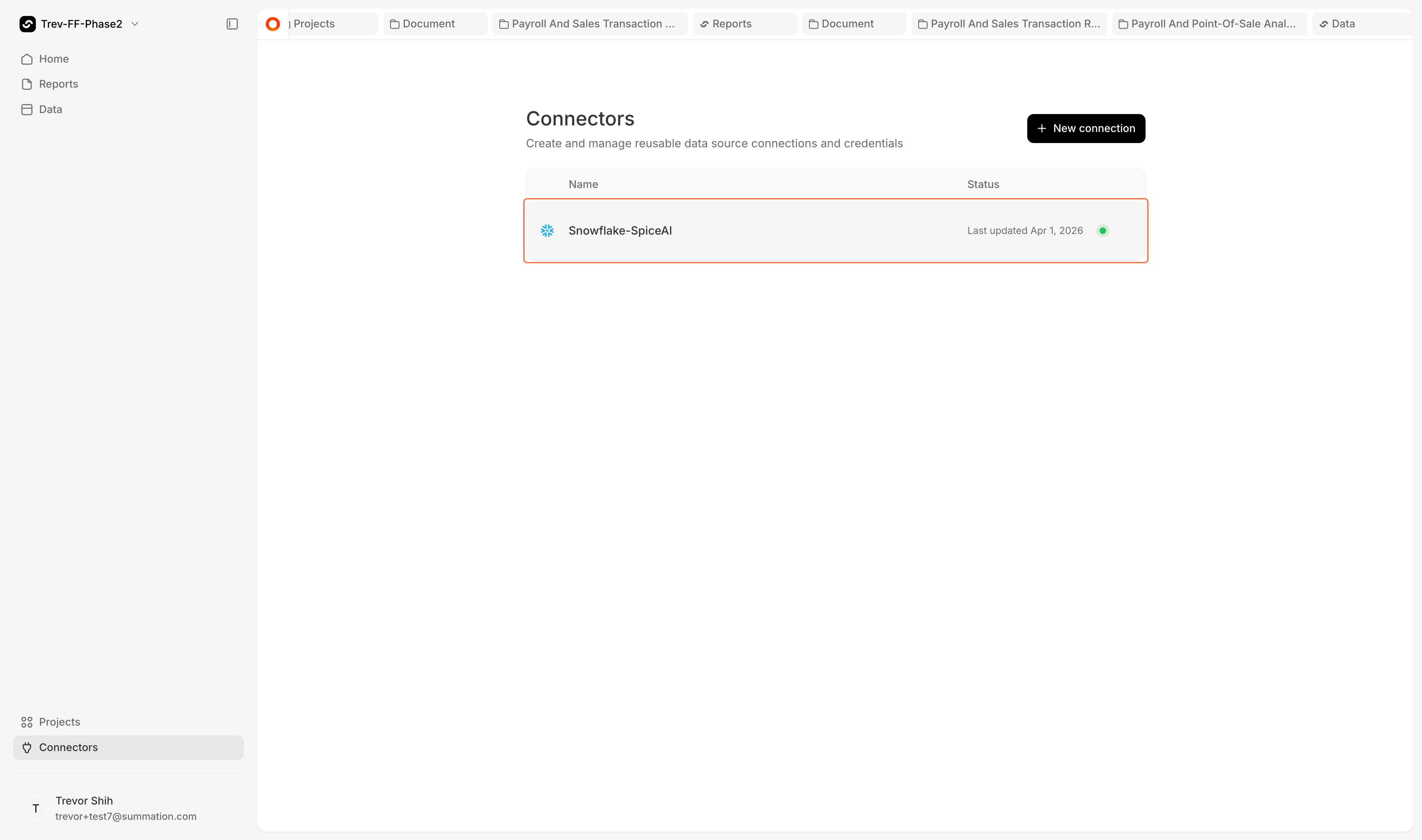
Connect your data
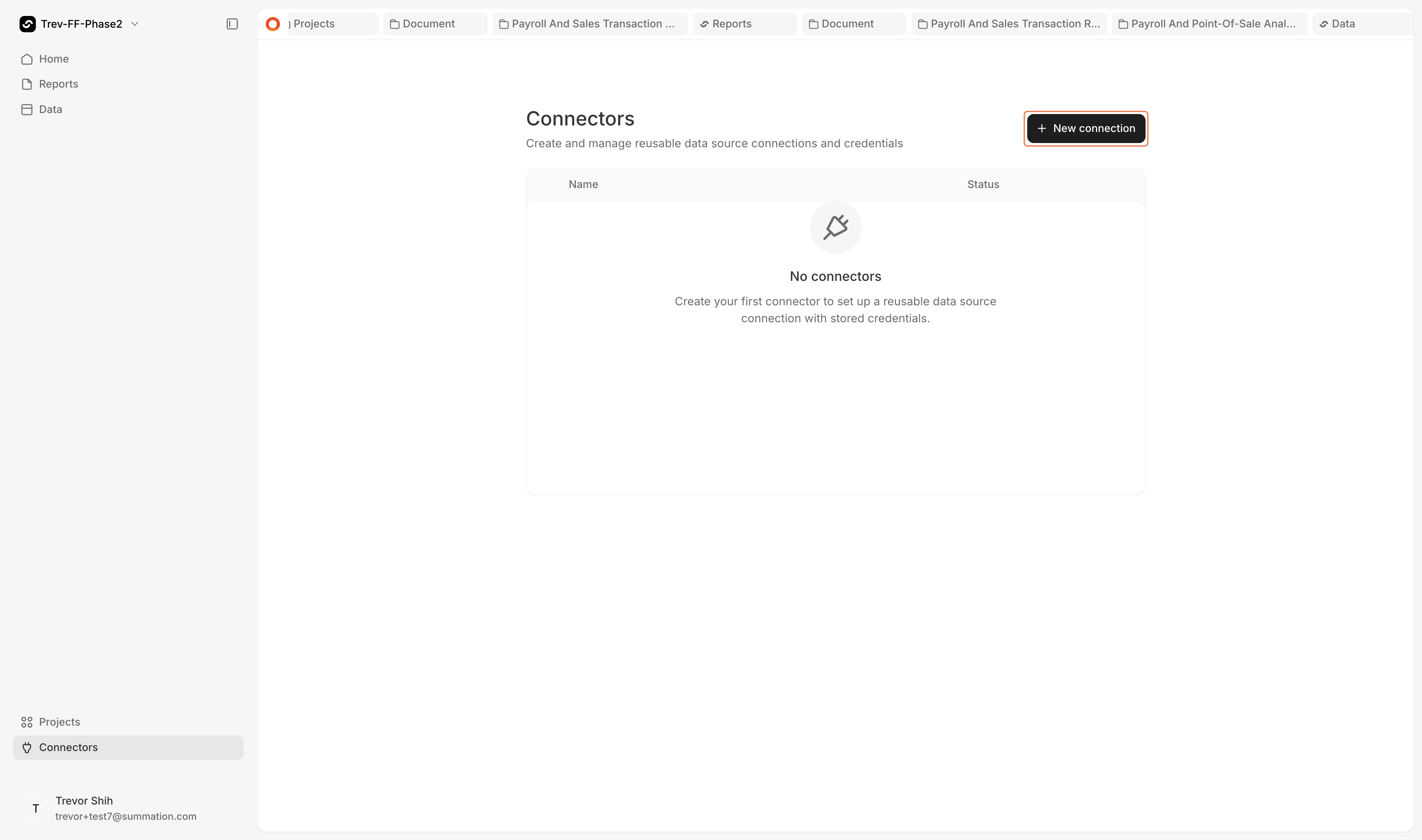
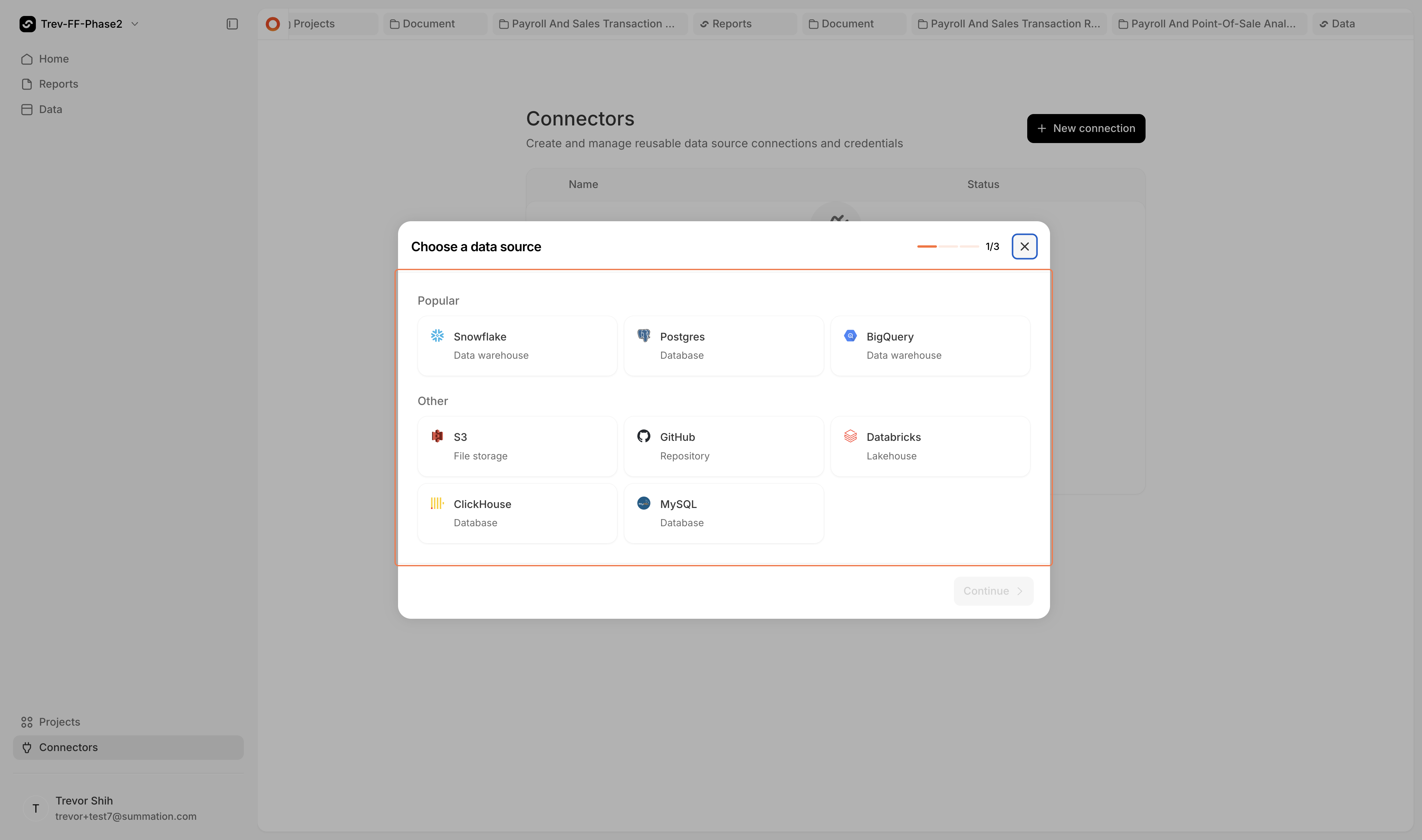
Before importing data into a project, you need to set up a connection. You can upload a spreadsheet directly or connect a data warehouse from the Connections page.- Upload a spreadsheet
- Connect a data warehouse
From inside your project, click +Import then Upload Files to upload a CSV or Excel file.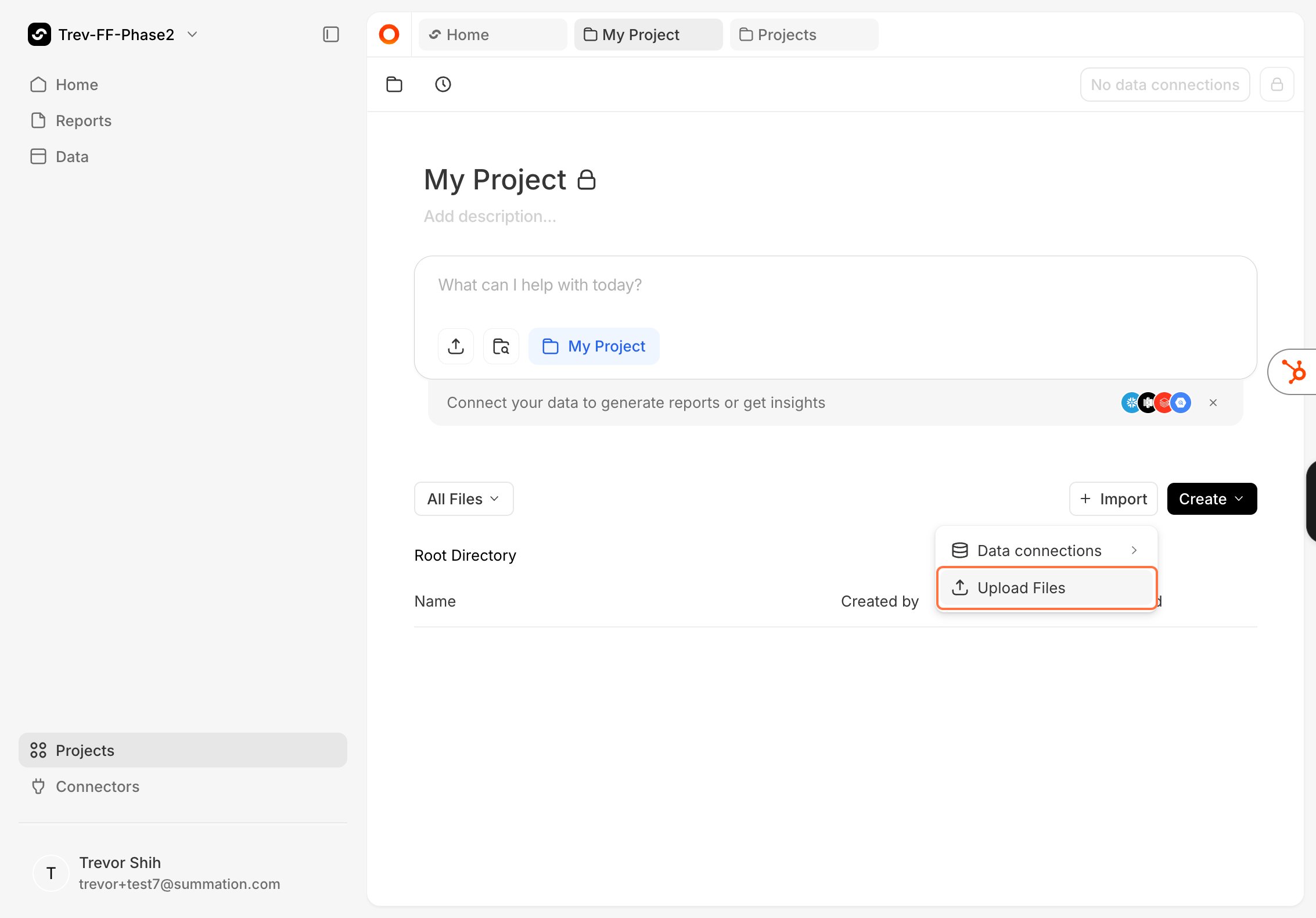



Create a report
1
Click Create then Report
Click Create and select Report.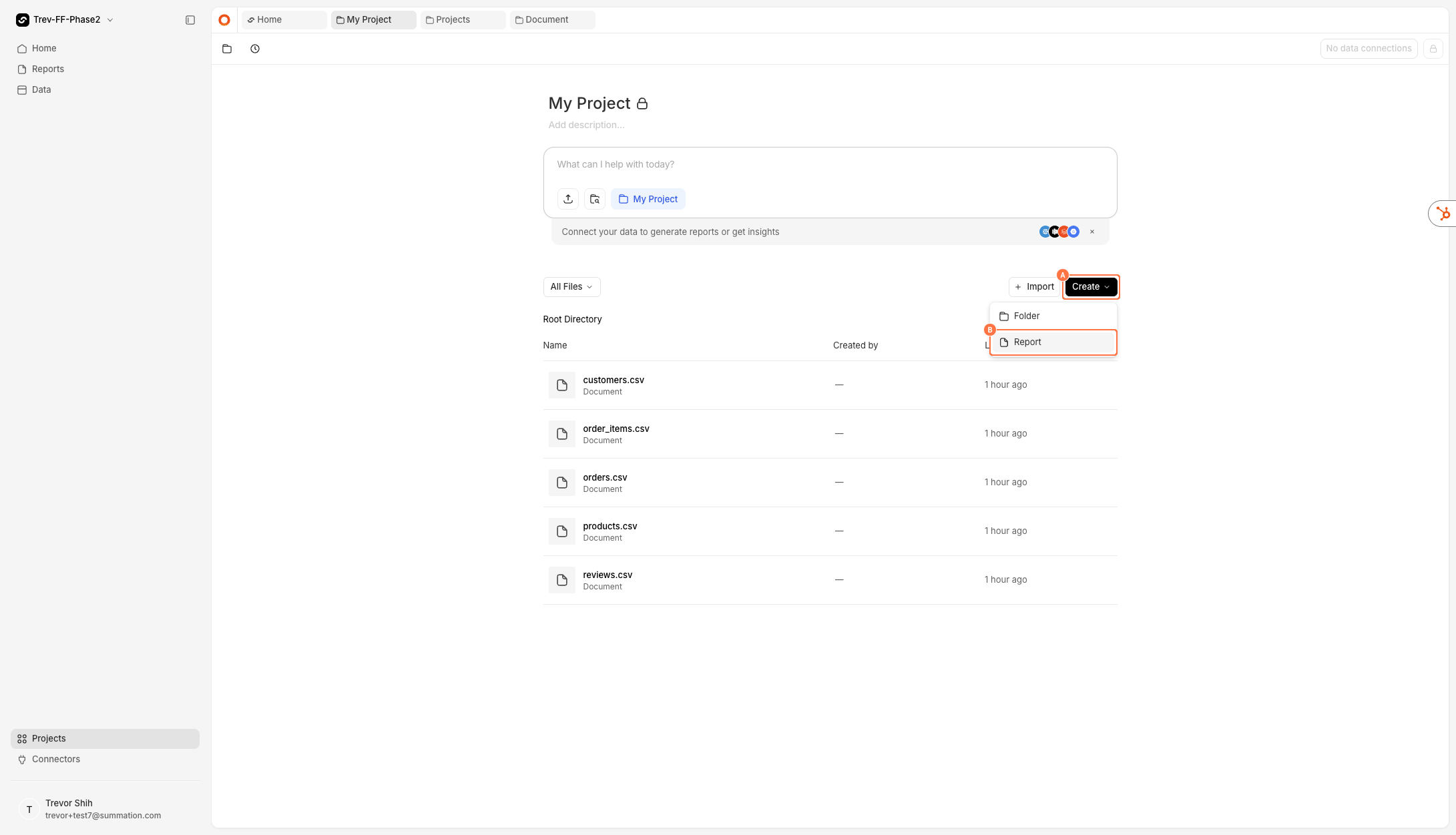
2
Enter a prompt
Describe the analysis you want. Here are some example prompts to try:B2B SaaS data: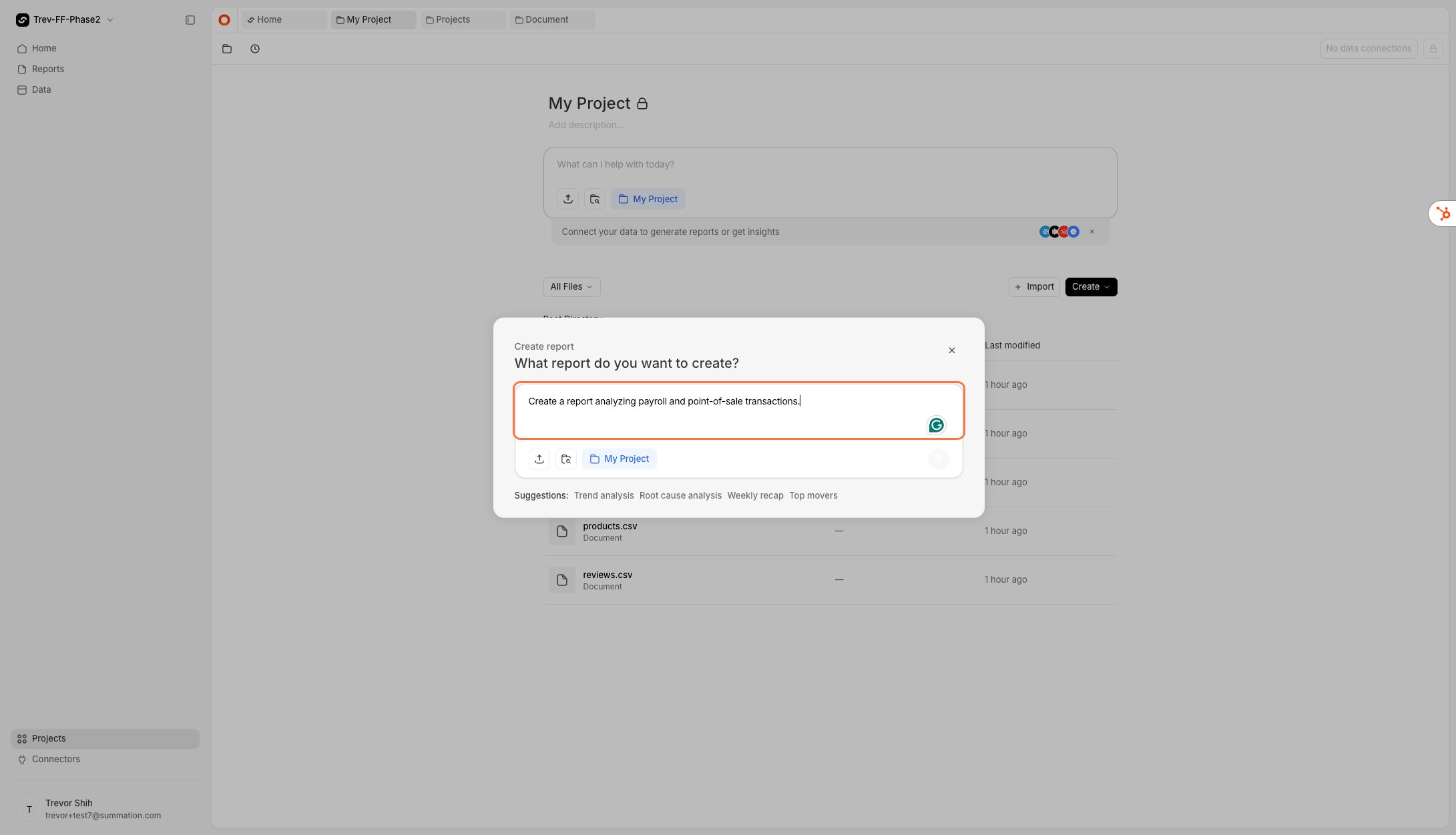
- “Summarize and analyze the pipeline and conversion funnel”
- “Create a report analyzing product usage”
- “QBR: P&L by segment and geography with variance commentary, highlighting cost drivers, revenue mix shifts, and risk-flagged entries requiring attention”
- “Analyze inventory movements and point-of-sale transactions”
- “Store-level P&L comparison for 2024: revenue by category, shrinkage and inventory loss rates, and labor cost efficiency”
- “What are the key headlines in partner channel performance?”
- “Analyze the P&L for key takeaways”
3
Find your report in the Reports tab
The Reports tab displays all reports you’ve created and reports shared with you. While building, the report will show “Preparing…”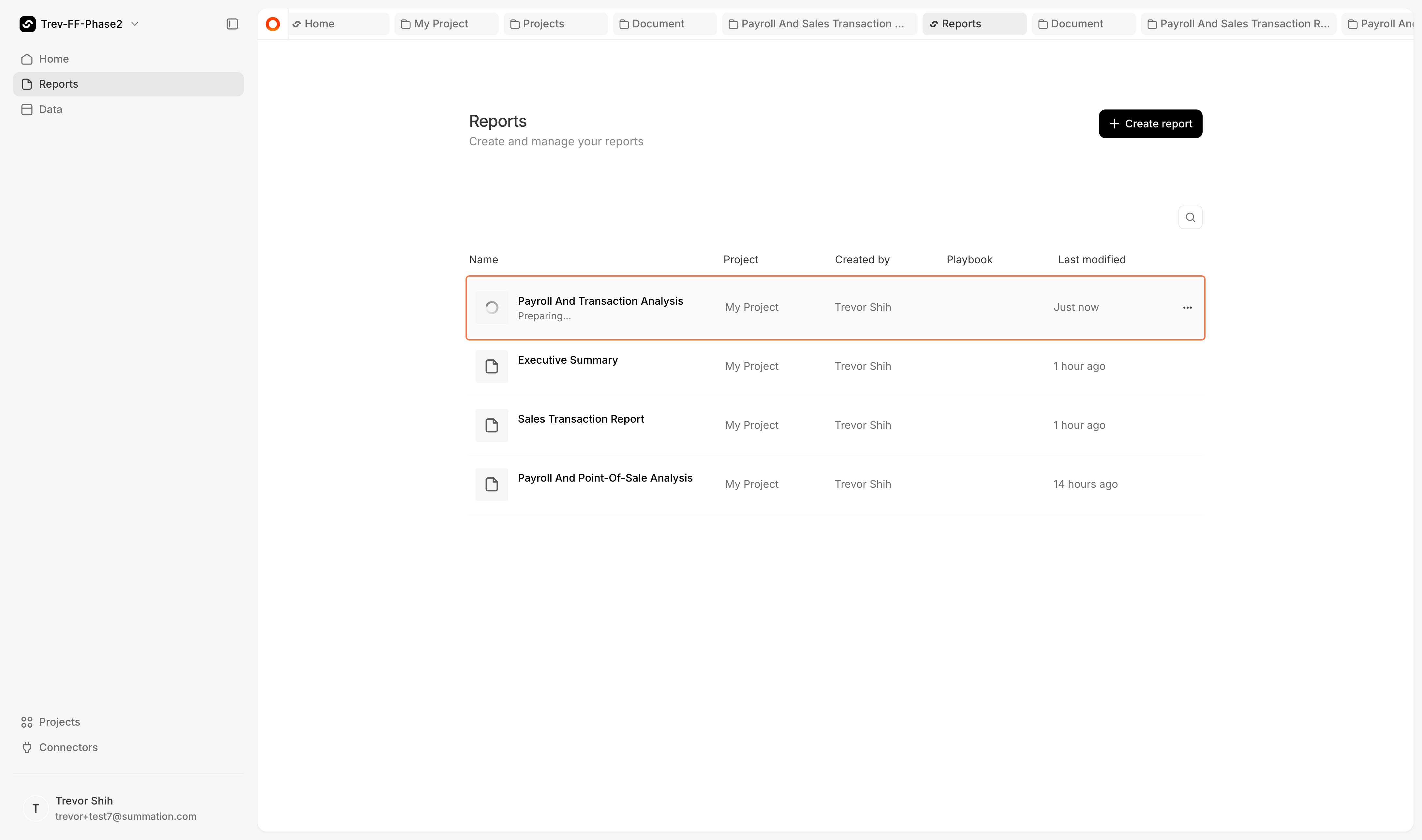
Watch the report being built
Want to see how Addison is building your report? You can follow along in real time.1
Open Addison
Click the orange Addison icon.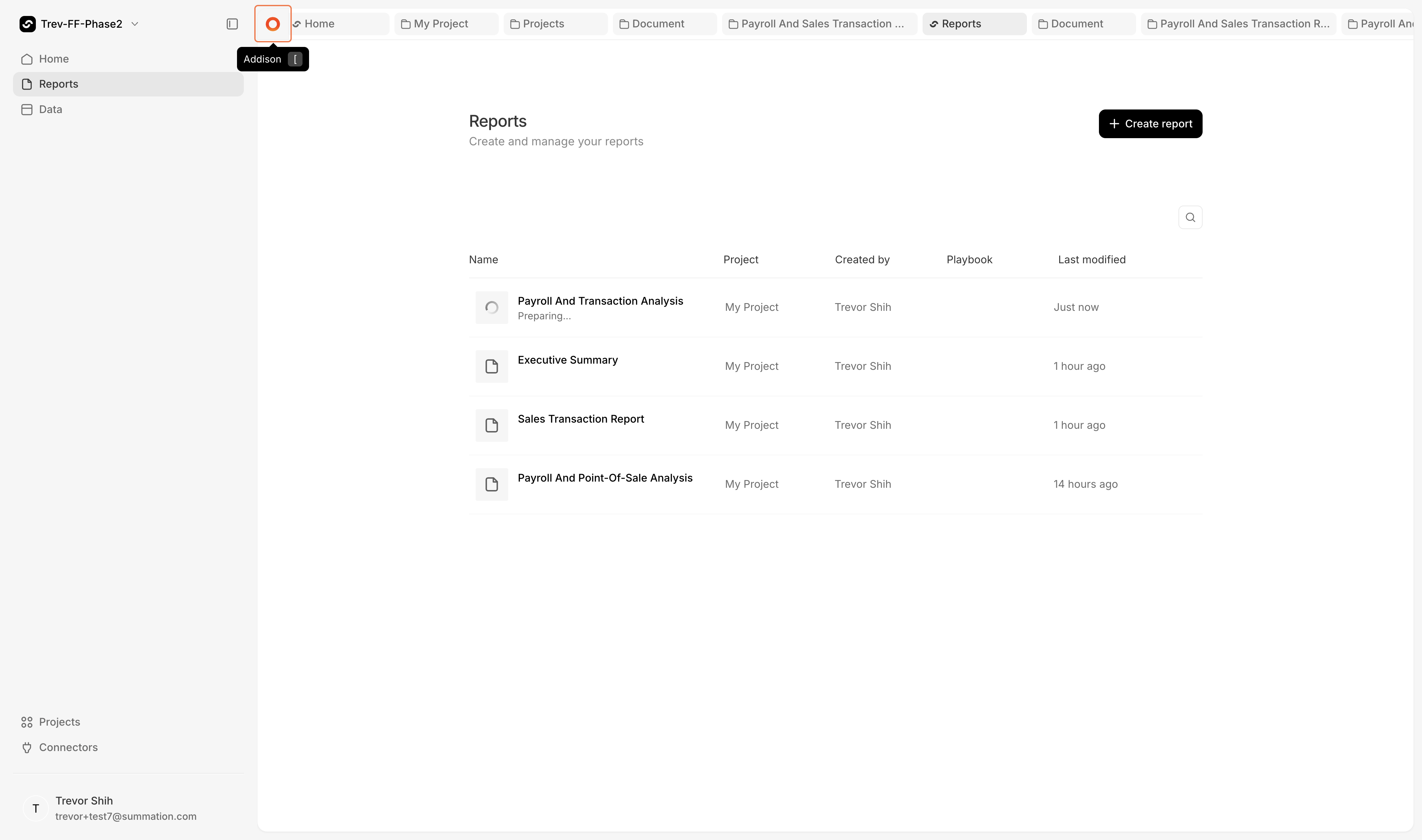
2
Open chat history
Click the clock icon to access chat history.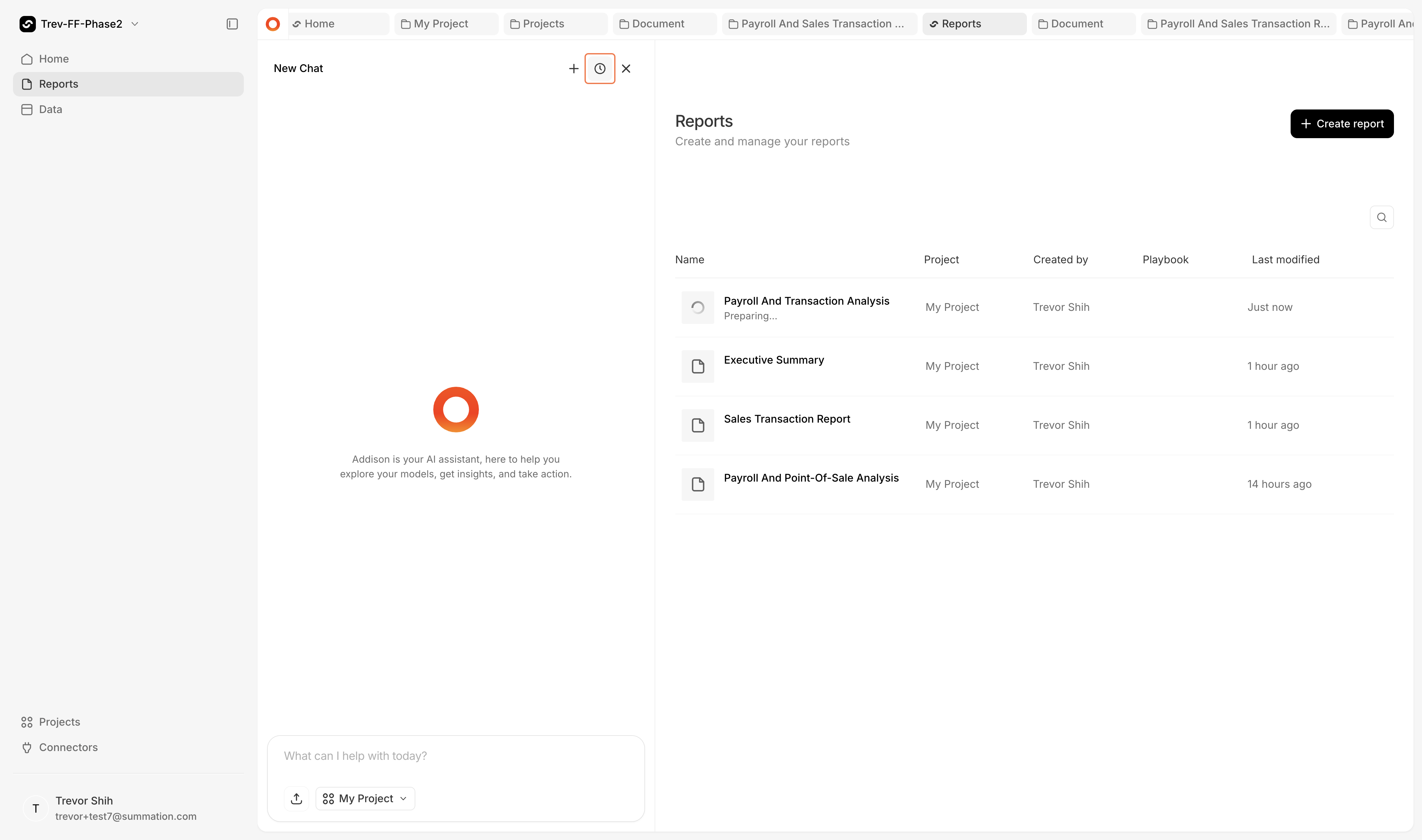
3
Find the report thread
The report you created will appear as the most recent thread.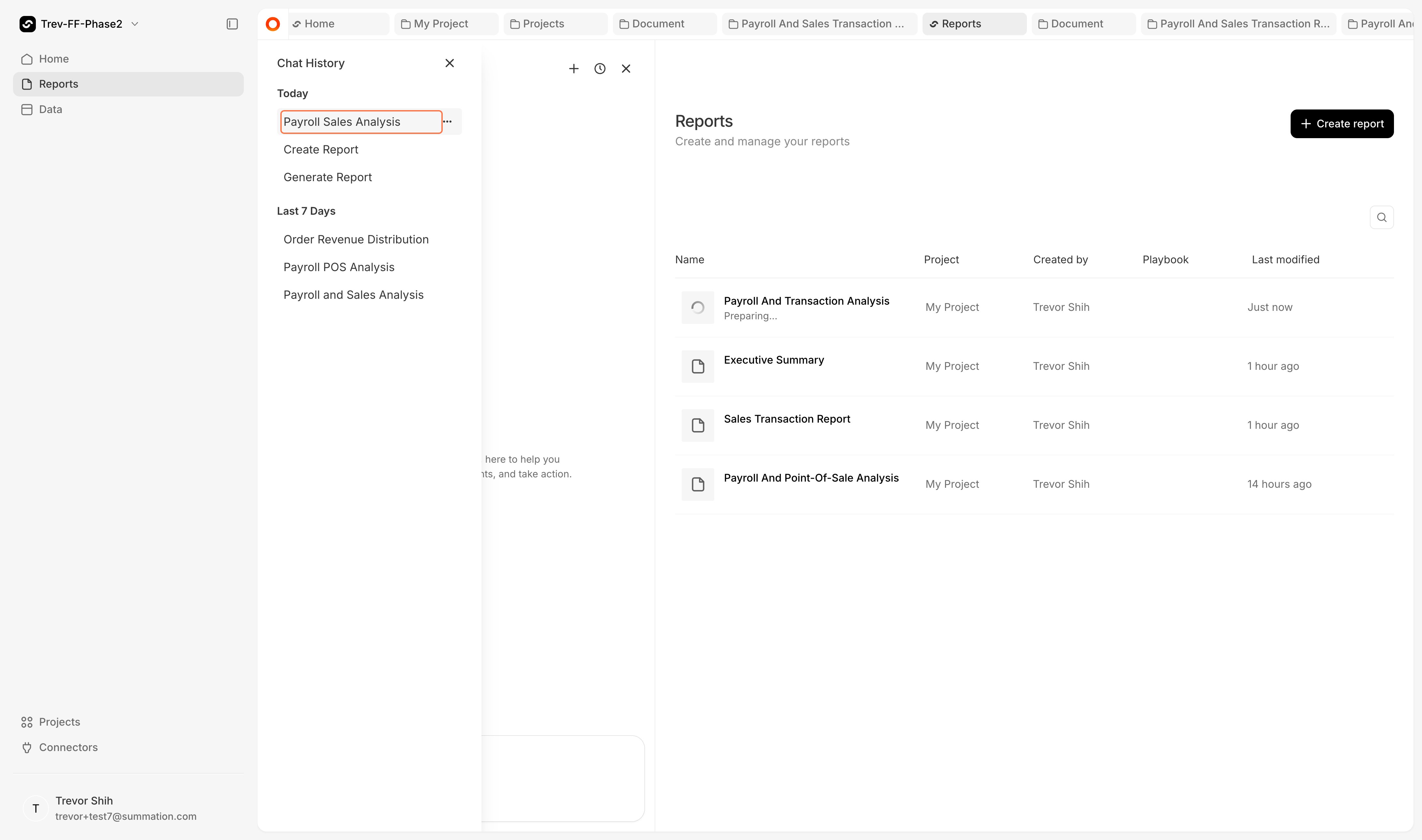
4
See Addison's reasoning
Addison provides an explanation of how it’s creating your report — the SQL it’s writing, the data it’s pulling, and the analysis it’s performing.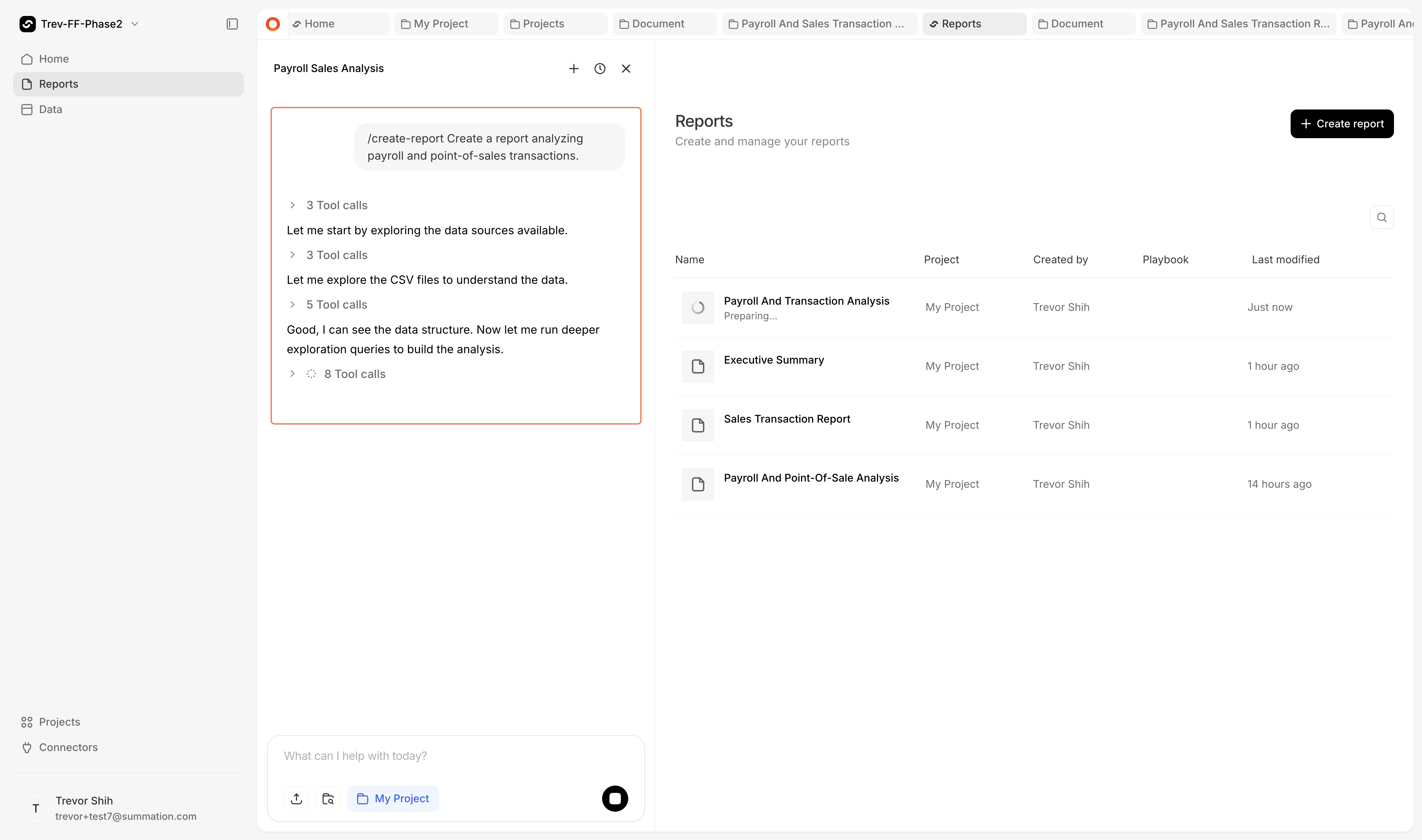
Report generation takes approximately 5–15 minutes depending on complexity.
Verification
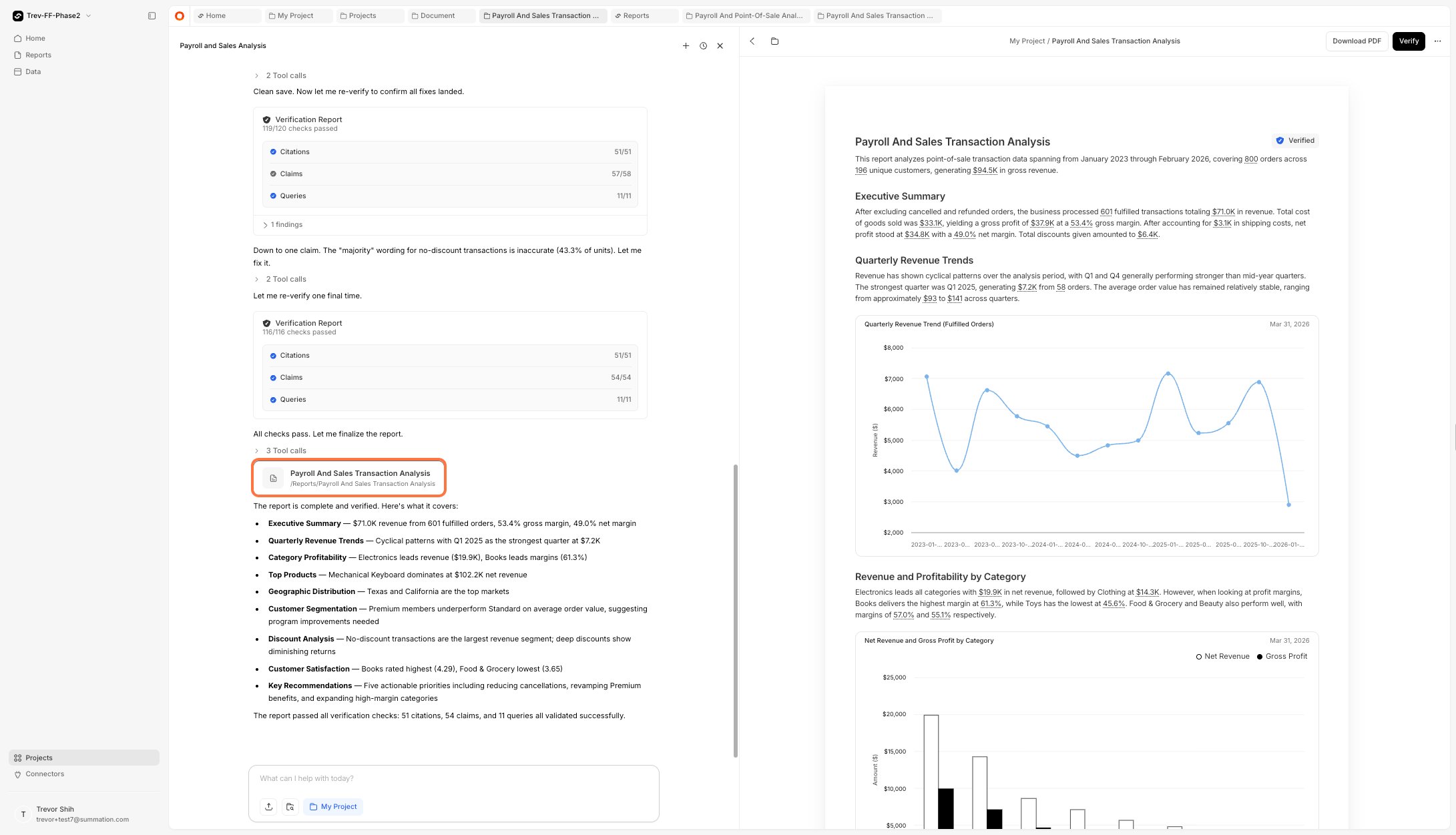
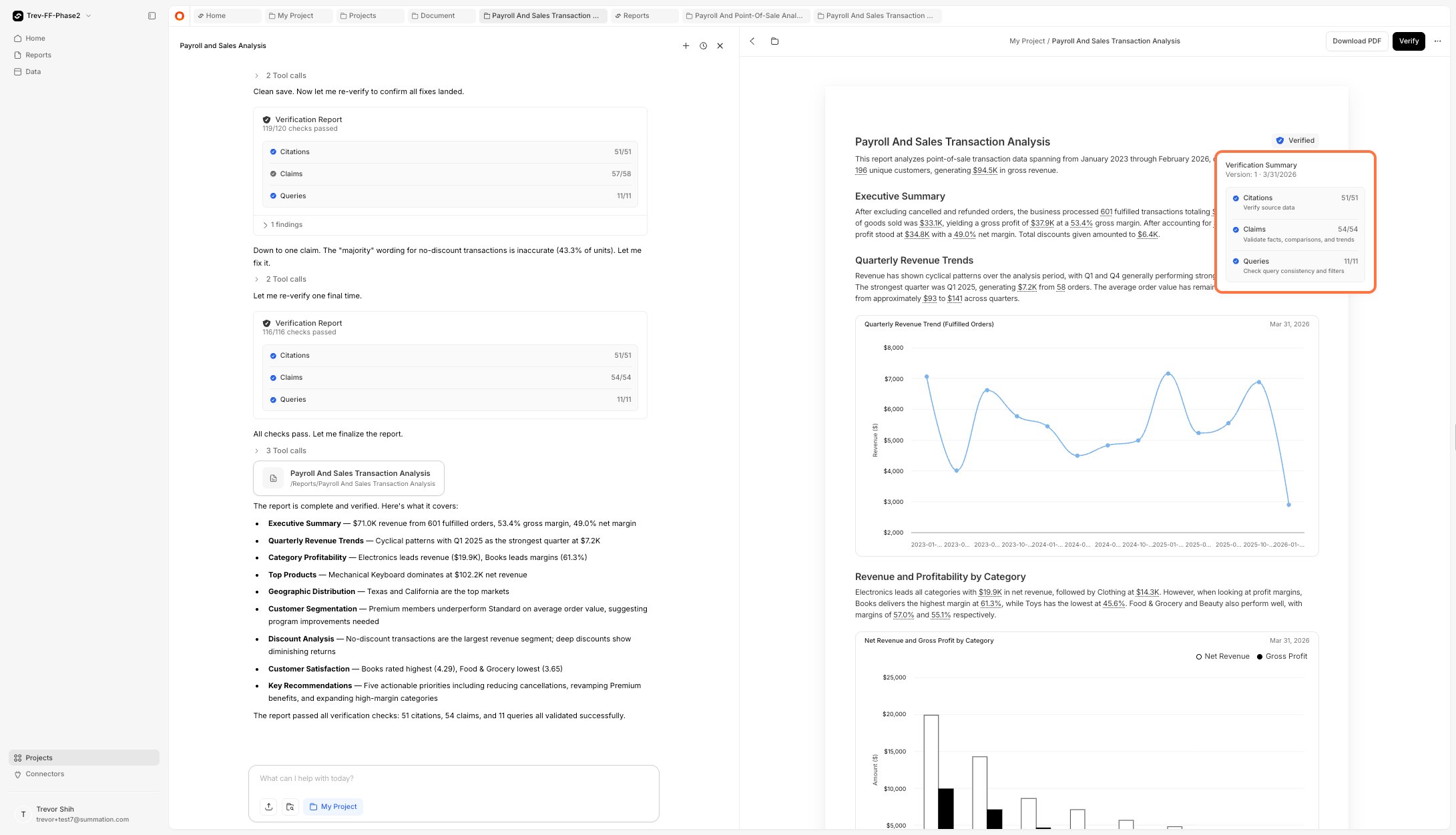
By default, Addison runs a verification process on your report. Verification checks the accuracy of citations, queries, and claims — and highlights any issues it uncovers.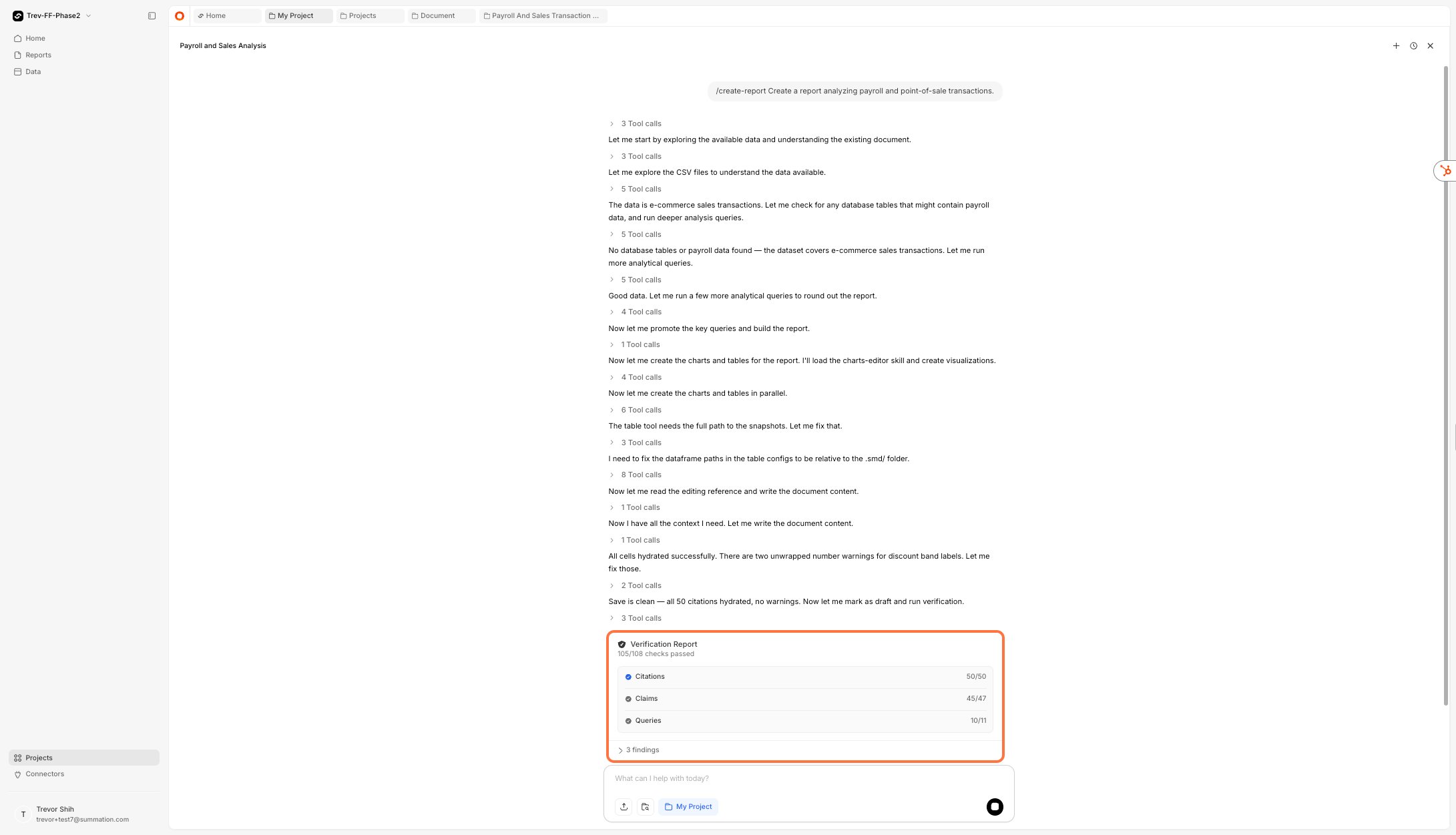
Ask follow-up questions
There are two ways to ask questions about your report.Option 1: Comment on the report
1
Highlight text to comment
Highlight an area of the report to open a comment box.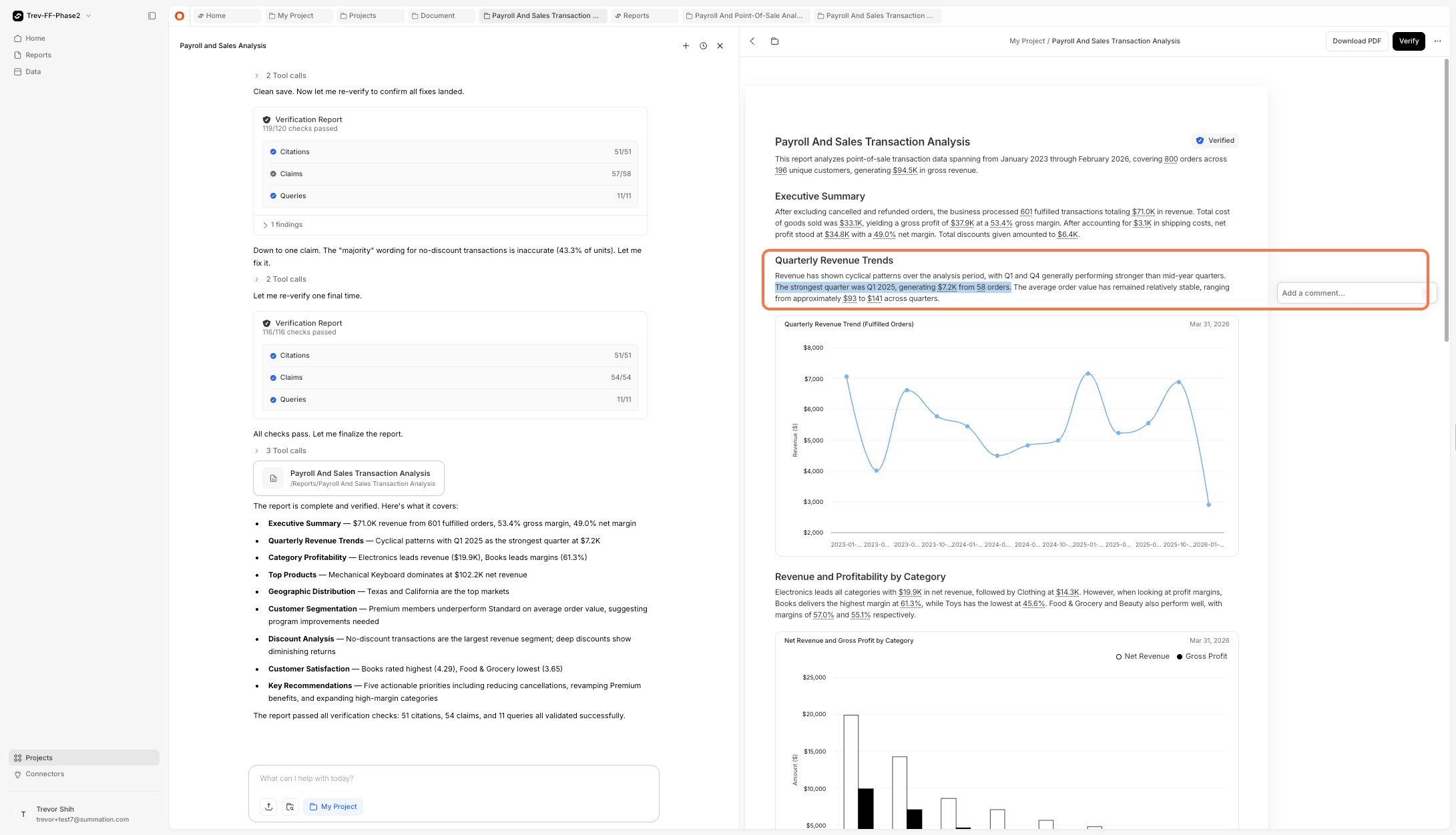
2
@mention Addison
Type your question and @mention Addison to get a response.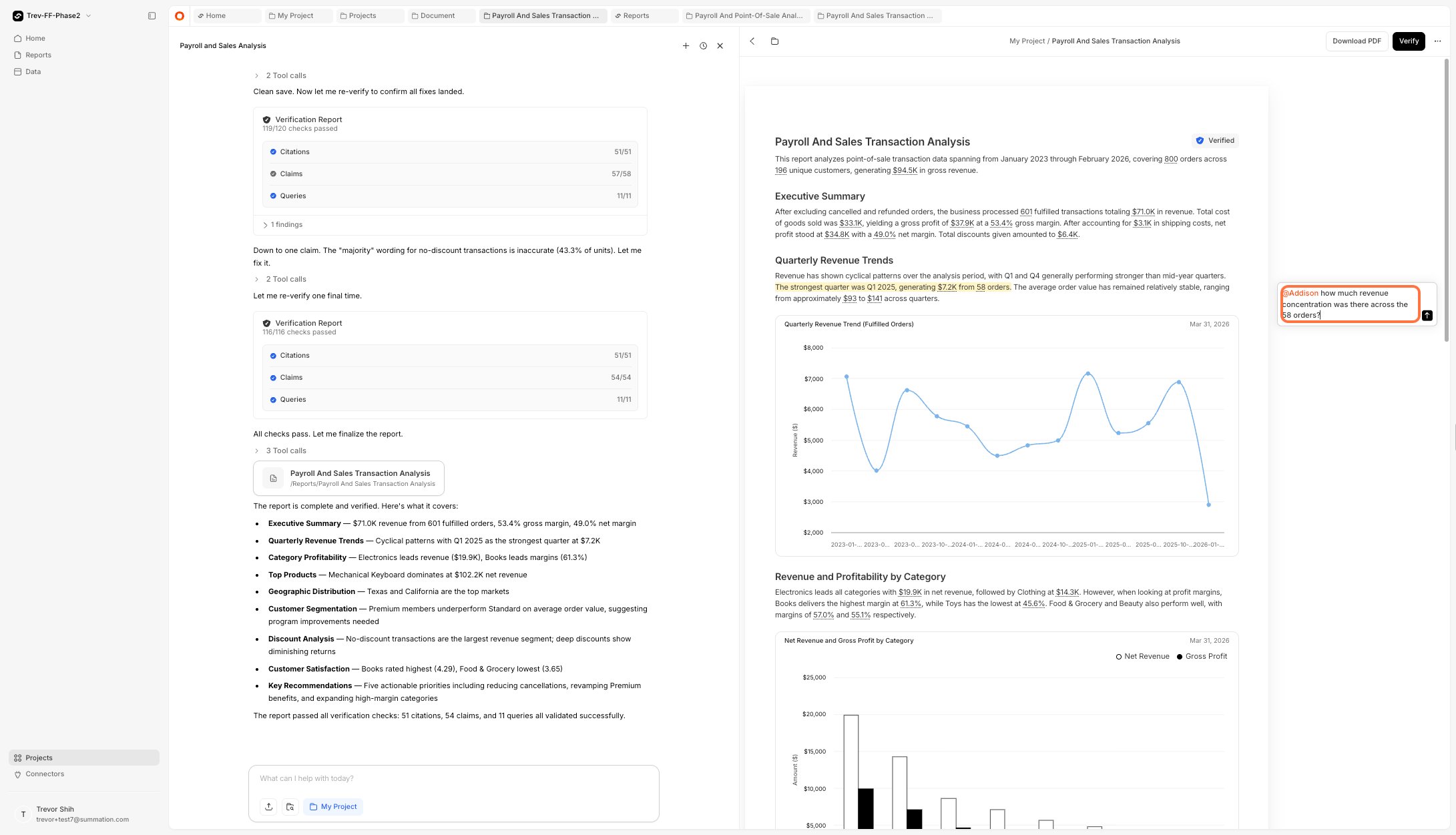
3
View the reply
Addison replies directly in the comment thread. Click on the reply to see the full detail.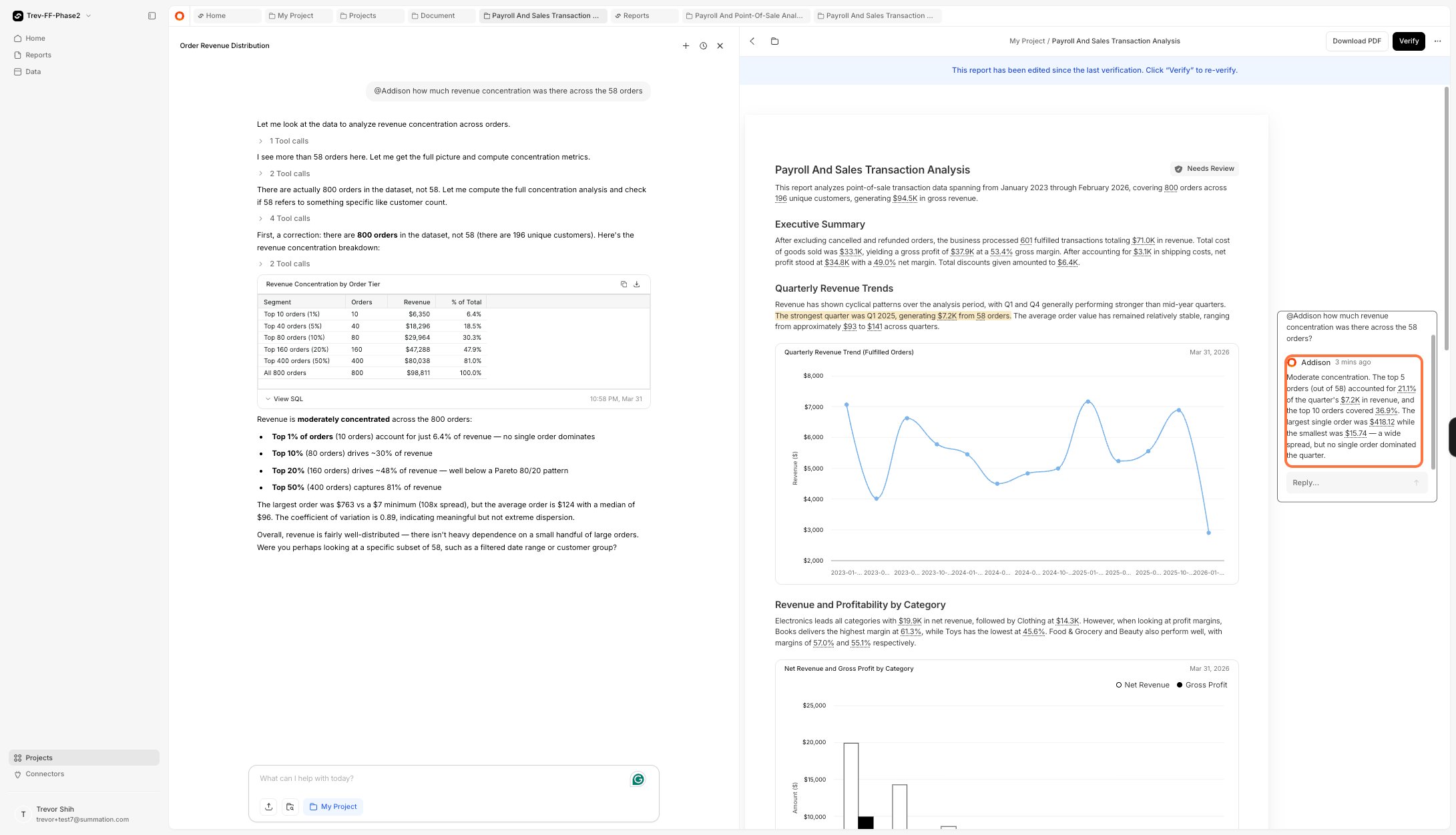
Option 2: Ask in the chat thread
1
Open Addison
Click the orange Addison icon to open a chat.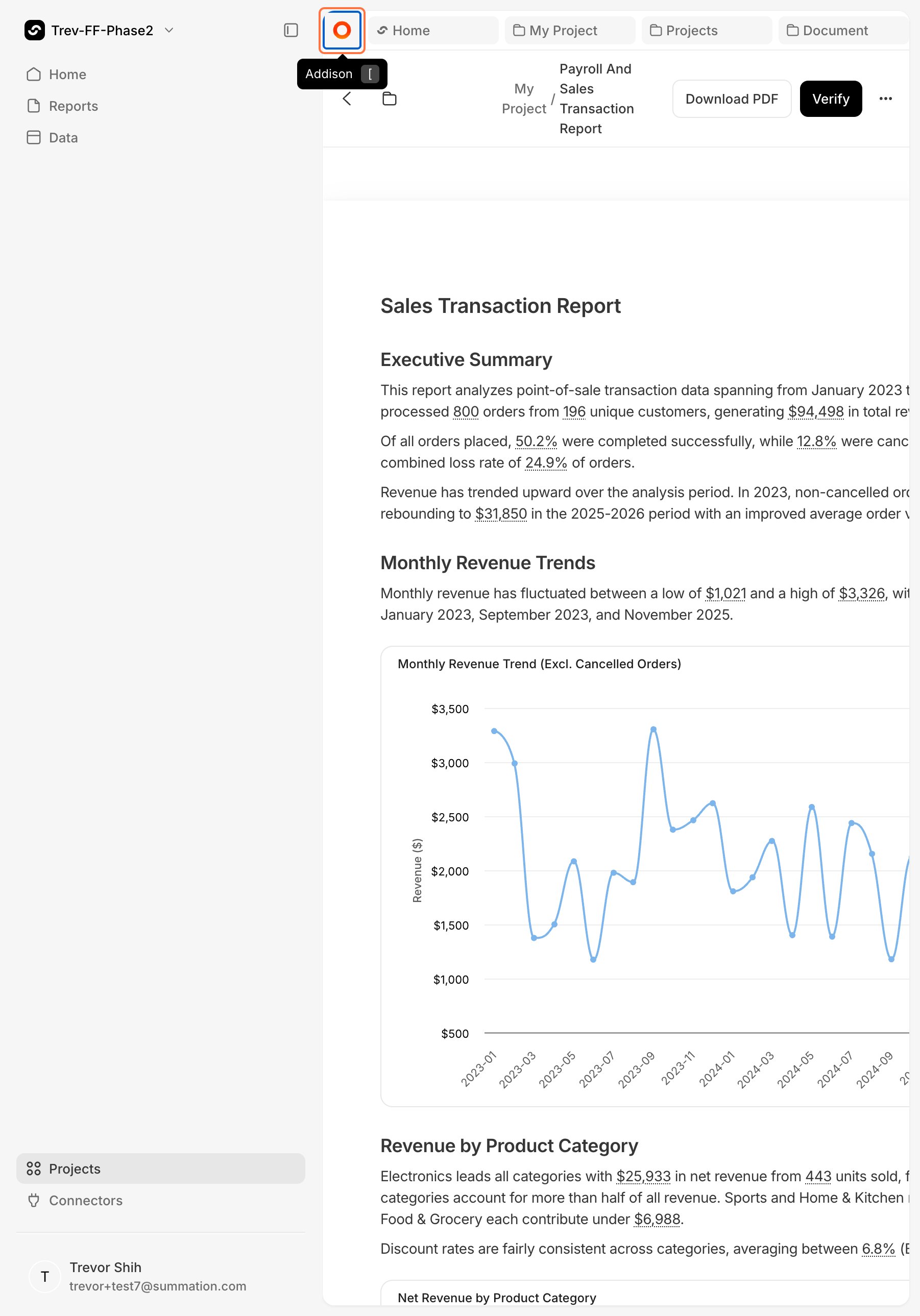
2
Type your question
Ask your question in the chat window.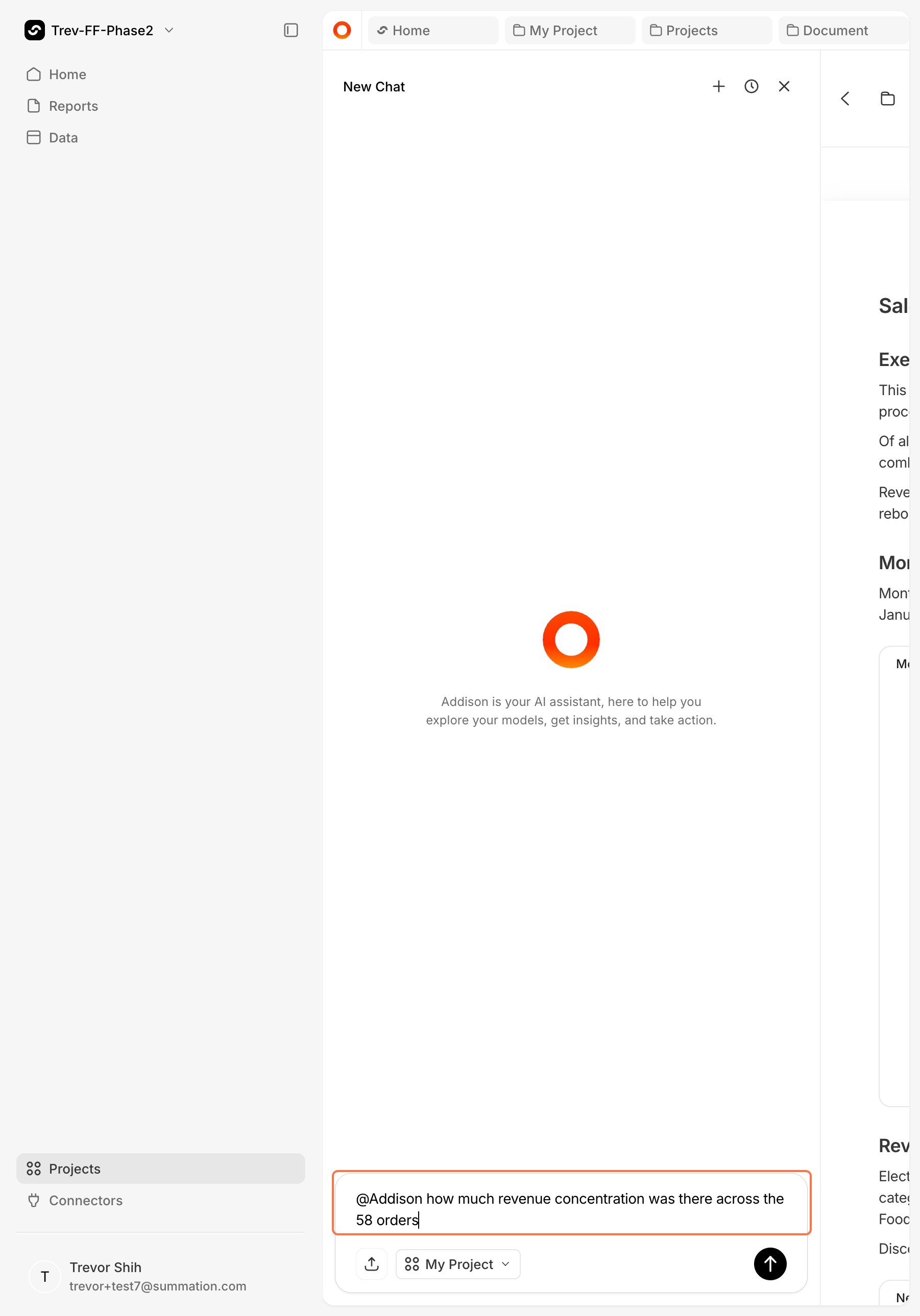
3
View the response
Addison replies with a detailed explanation.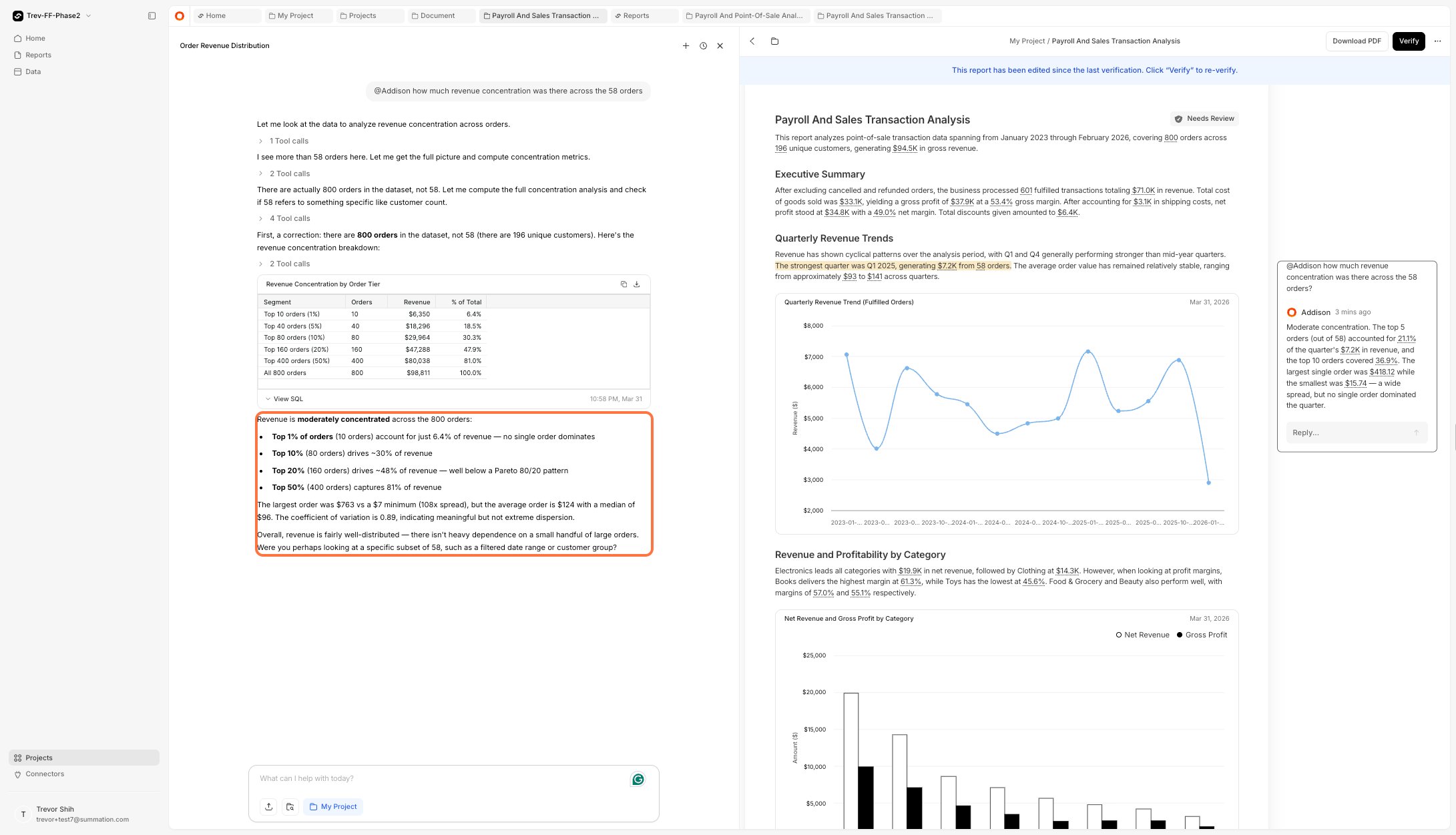
Edit the report
To apply feedback across the report at once:1
Add comments
Highlight areas of the report and leave comments with your requested changes.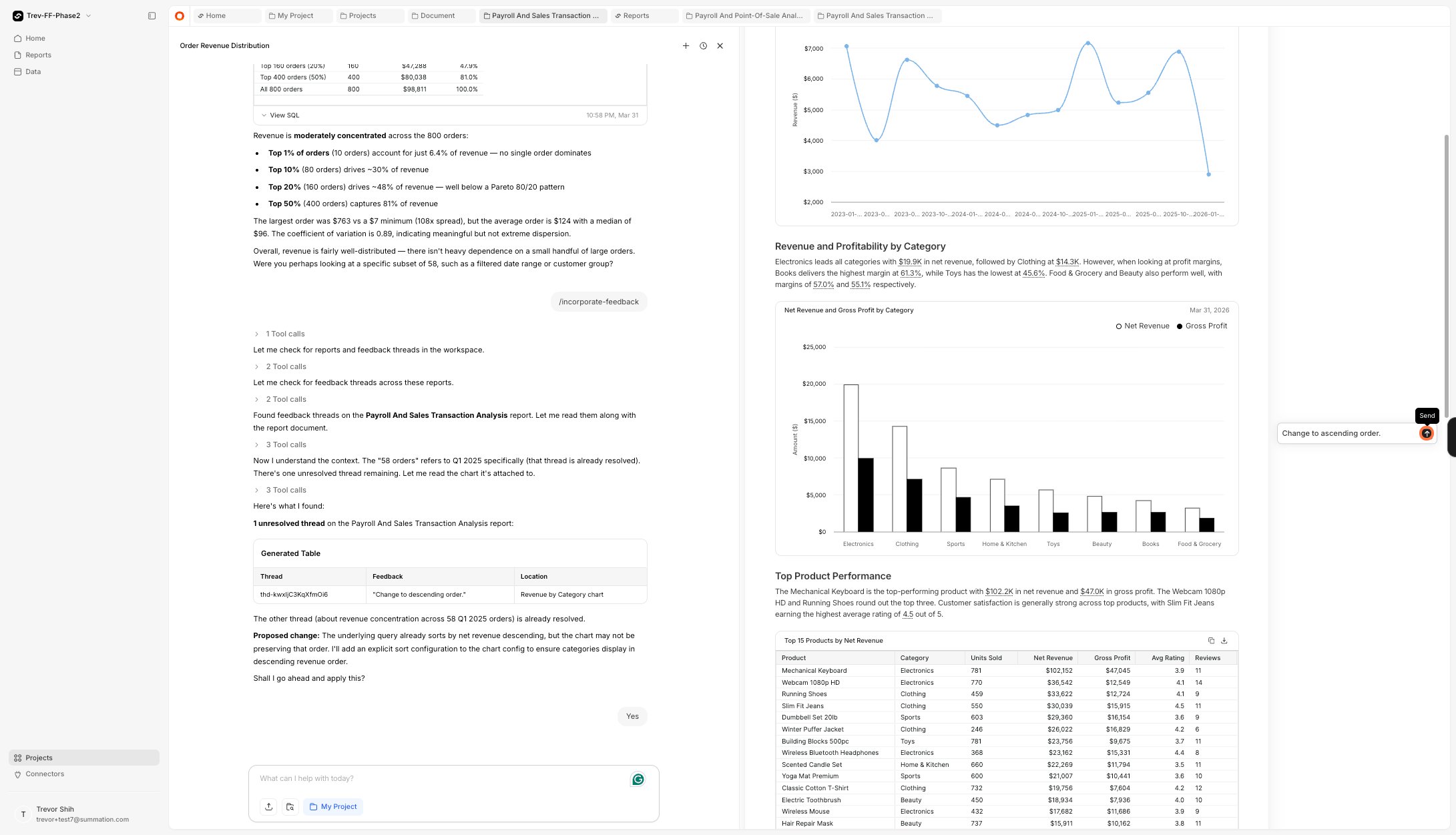
2
Incorporate feedback
Open the chat window and type 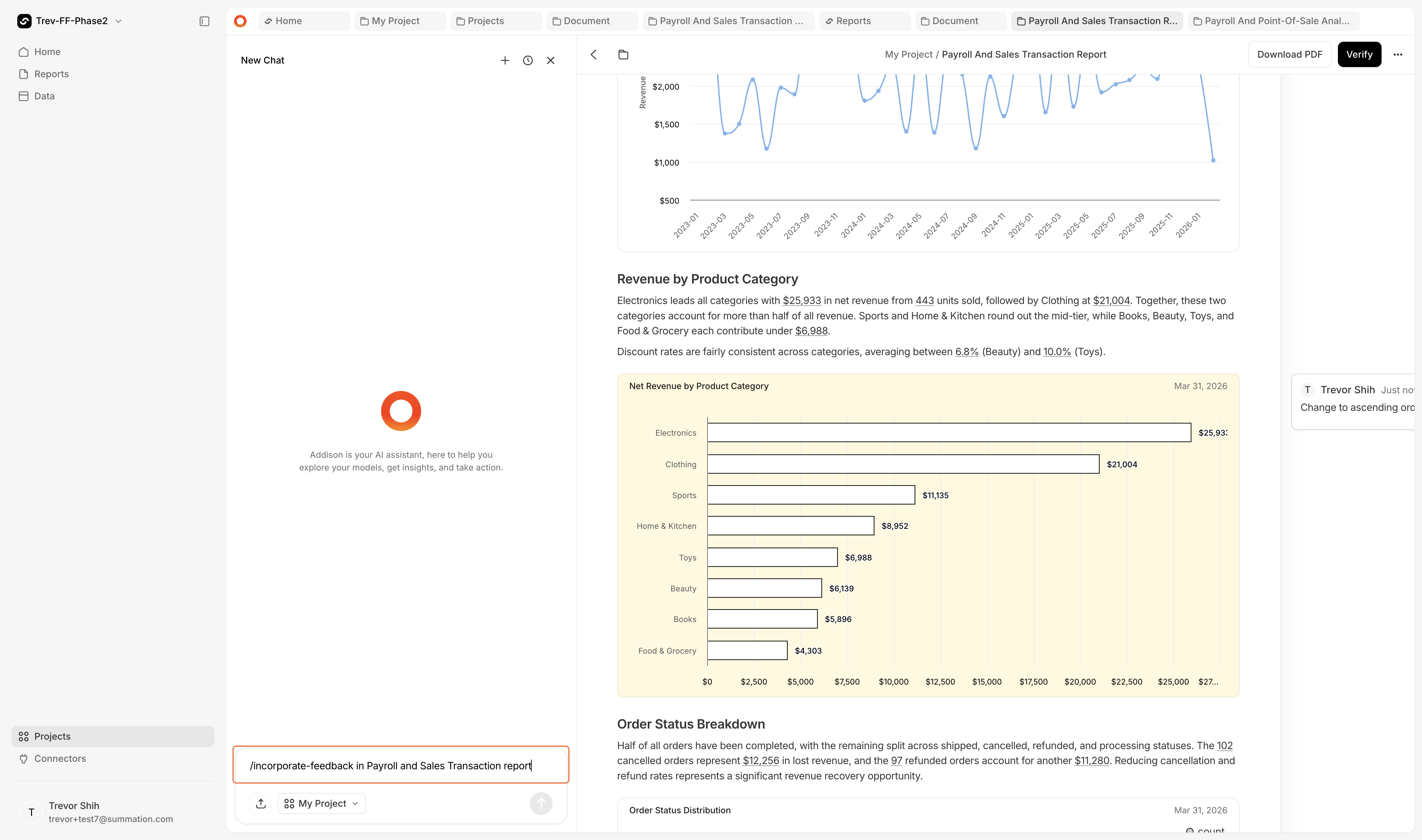
/incorporate-feedback in your report name. Addison will review and execute all open comments.