Claude Code
Anyone can install the plugin themselves from a Claude Code session — no admin required.1
Add the Summation marketplace
2
Install the plugin, then restart Claude Code
3
Sign in
4
Take the tour
Commands
You don’t need commands for most work — just ask data questions in plain English and Addison picks them up.
Claude Desktop
On Claude Desktop (including Cowork), plugins are managed per organization: a Claude admin enables Addison once, then every member installs it from the org library.For your Claude organization admin
1
Add Addison from GitHub
Go to claude.ai → Orgranization settings → Plugins → Add plugins, select Sync from Github (you have to fork this repo or upload the zip file available on the plugin releases page.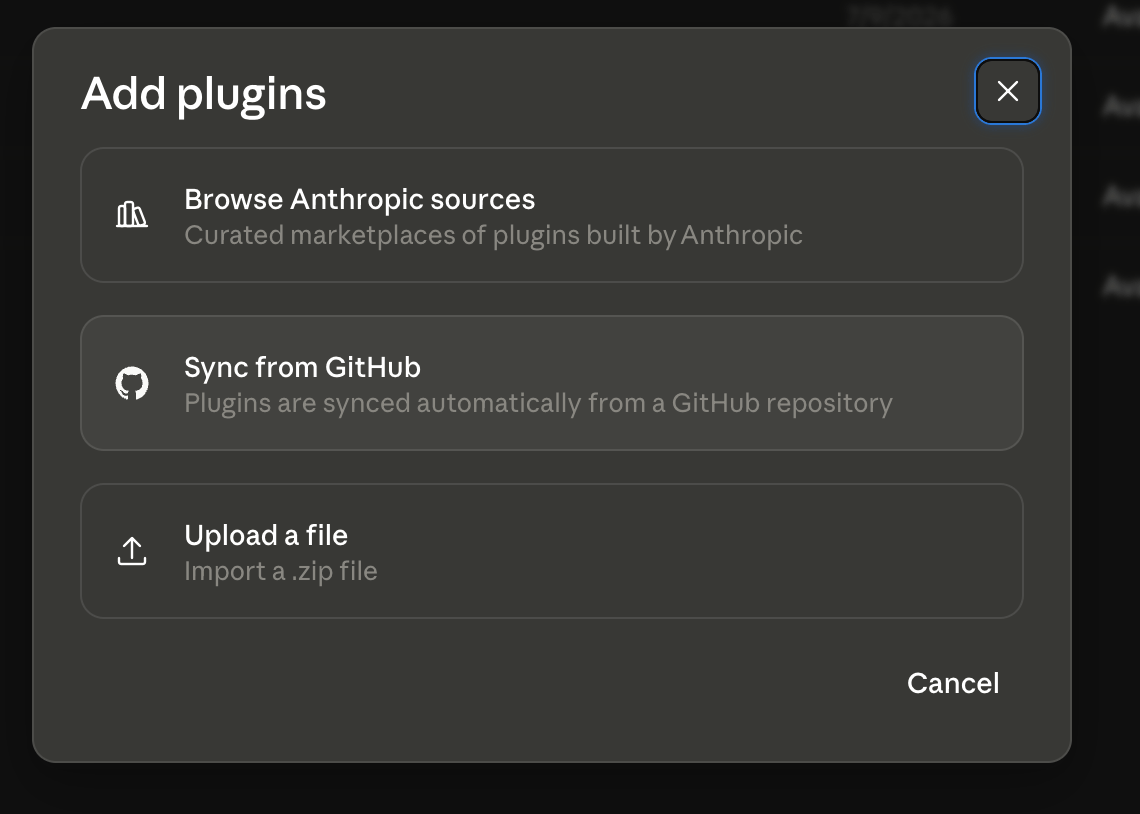
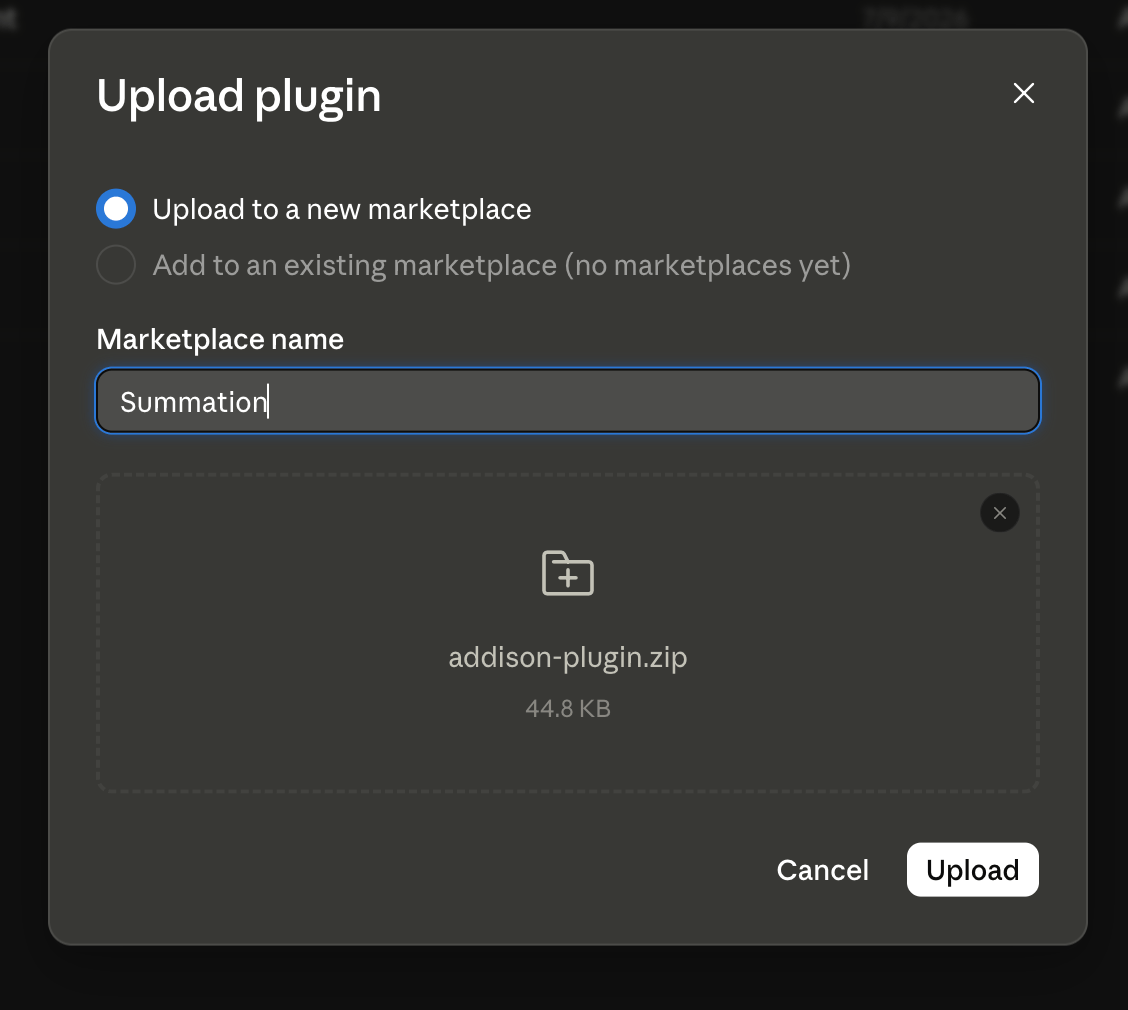

2
Allow network access to Summation
Addison’s helper runs in Claude Desktop’s code-execution sandbox, which blocks outbound network access by default. Under Admin settings → Capabilities → Code execution → Network access, allow both hosts: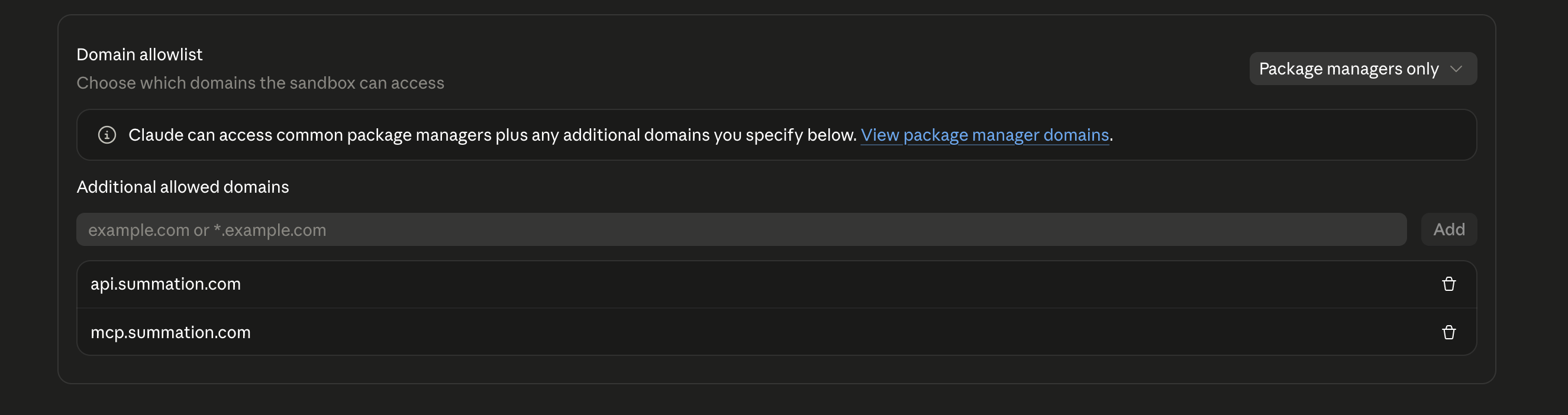
3
Publish to your organization
Publish Addison to the org library so members can install it.
For team members
1
Install from your org library
In Claude Desktop, open Settings → Plugins → Brown, find Addison in your organization’s library, and install it by clicking on the (+) icon.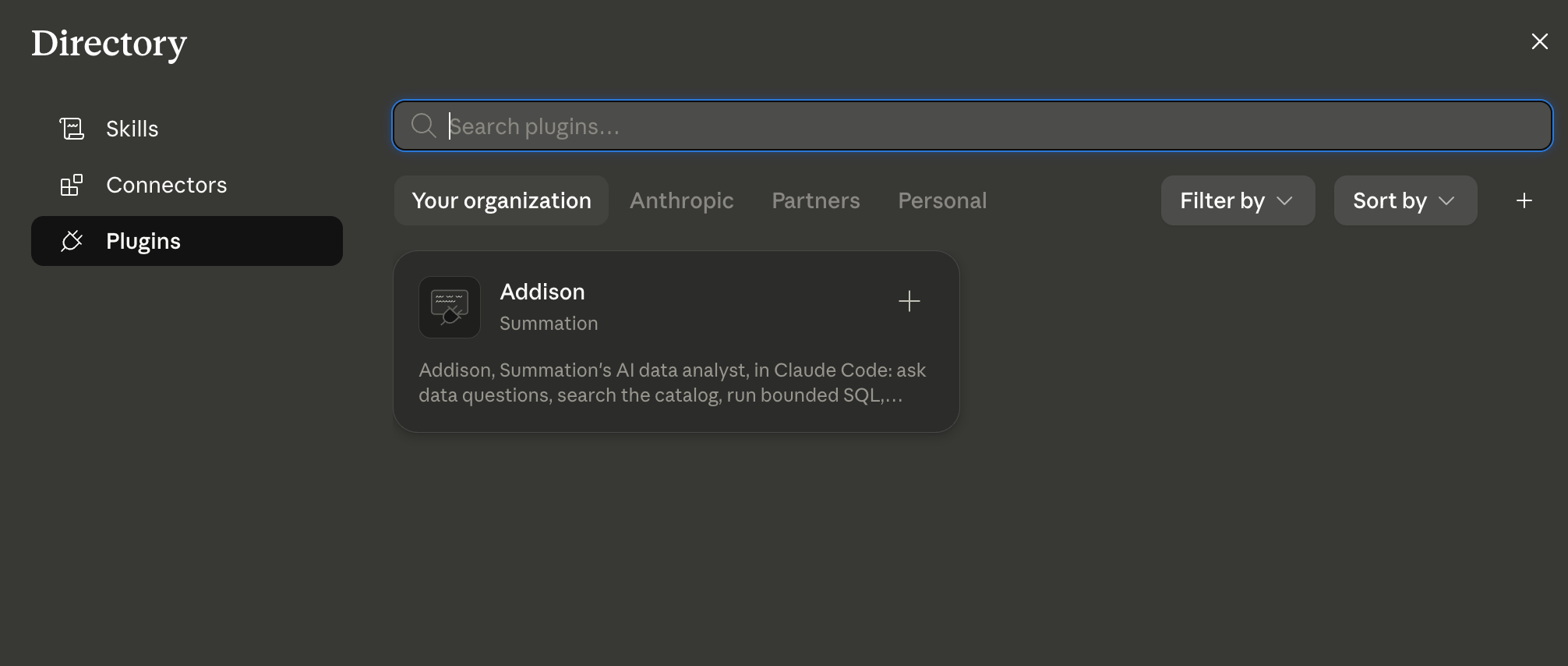
2
Start and sign in
Open a new chat and type
/addison:signin. Approve the sign-in link in your browser and Addison shows a map of your data.Troubleshooting
/addison:signin fails immediately on Desktop
/addison:signin fails immediately on Desktop
Almost always the network allowlist. Ask your Claude admin to confirm
api.summation.com is allowed under Code execution → Network access."Not signed in to Summation. Run /addison:signin to connect."
"Not signed in to Summation. Run /addison:signin to connect."
Your session expired or was never completed. Run
/addison:signin again — it takes seconds.A report or query is taking a while
A report or query is taking a while
Report generation and validation are thorough and can take a minute or two. Addison tells you it’s working — this is normal, not a hang.
Desktop asks me to sign in again in a new conversation
Desktop asks me to sign in again in a new conversation
On Claude Desktop, credentials live in the per-conversation sandbox and don’t always carry over. Re-running
/addison:signin reconnects in seconds. A one-click connector sign-in is coming — see MCP Server.I need automation or a non-production environment
I need automation or a non-production environment
The plugin is production, browser-sign-in only — the right default for almost everyone. For machine-to-machine access, see Public API or contact your Summation representative.